

Insurance certificates, permits, food safety documents — keeping them in order is part of running a safe and compliant market. We've added new tools that make it quicker to review trader documents, track compliance and preserve an accurate record for each event date.
A quick snapshot: what's changing and who is impacted?
This update is most relevant to event managers who:
- Request documents through your application form that have been linked to document types under Settings (e.g. Liability Insurance)
- Use the green compliance indicator on the Event Date View page to monitor trader documents
The main changes are:
- New applications: You can now review, accept or reject documents while reviewing an application.
- Event Date View: The compliance indicator will now cover all linked document types — not only liability insurance.
- New Documents tab: Each event date will have a central place to review, accept, reject and lock trader documents.
- Future document updates: When a trader replaces a document, the new version automatically applies to all future bookings with your organisation, except for event dates where the document has been locked.
Reviewing documents is optional. If you're happy with how documents work today, expiry checks will continue as before. However, if you rely on the compliance indicator on the Event Date View page, these tools will help provide a more accurate view of each trader's compliance.
Event managers remain responsible for reviewing the documents and confirming they meet their requirements. As expiry dates are entered by traders, event managers should also check that the date entered in LocalStalls matches the expiry date shown on the document.
Why we built this
Event managers told us the same thing in different ways: it's not enough to know a document exists — you need to know it was right.
You may need to confirm that an insurance certificate covers the trader's activity, that a permit is current, or that the document you reviewed for an event is still the document held against that date later.
Expiry dates answer part of that. These new tools let you record your review of each document, see its history and preserve the approved version against a past event date.
What's new
Review documents from new applications
When reviewing a new application, you can now open each linked document and accept or reject it before processing the application as usual.
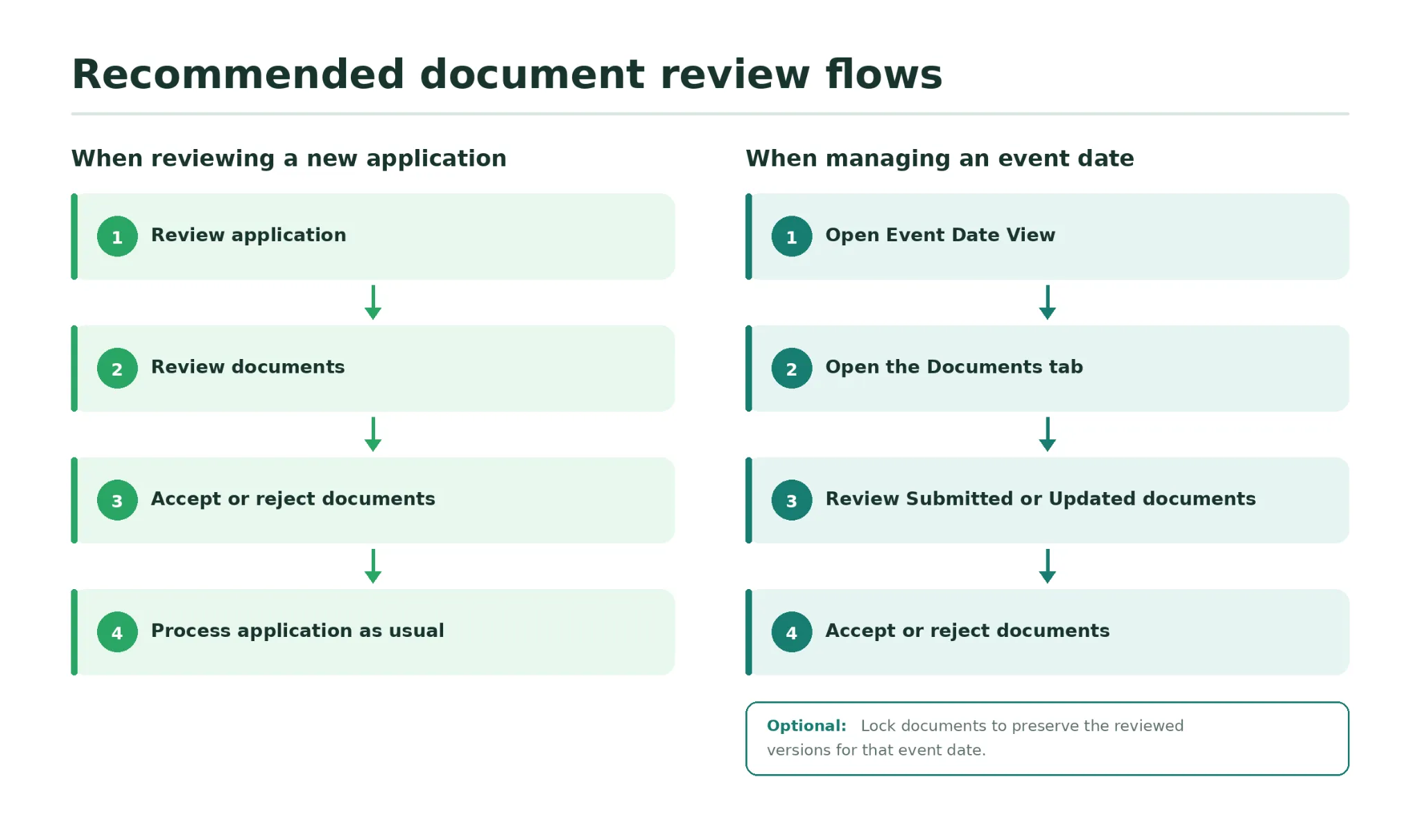
Application review flow: Review Application → Review Documents → Accept or Reject → Process Application as Usual
Rejecting a document does not automatically reject the application. It records the document as rejected and allows you to tell the trader what needs to be corrected.
A Documents tab on every event date
Open any date within your event and you'll find a new Documents tab. It lists attending traders and the document types linked to your application form.
Each document displays its current status:
- Submitted
- Accepted
- Rejected
- Updated
- Not Submitted
This gives you one place to review your traders' documents without opening each application individually.
Accept or reject documents, with a reason
Most documents open directly inside LocalStalls, so you don't need to download them or open a separate window.
You can accept a document or reject it with a short reason. If you reject it, the trader receives an editable email explaining what needs to be corrected and how to update the document.
Accepted documents display their accepted status, reviewer and review date wherever they appear.
Know when an accepted document changes
If a trader replaces a document you previously accepted, its status changes to Updated.
The updated status appears in the Documents tab list, letting you know that the new version needs to be reviewed.
The updated document automatically applies to the trader's future bookings with your organisation, except for any event dates where the document has been locked.
A history for every document
Every upload, acceptance and rejection is recorded.
Open a document to view its timeline, including what action was taken, who completed it and when. This creates a clearer record if you need to confirm which documents were supplied and reviewed.
Lock documents to an event date
Locking a document means the trader can no longer change the version held against that event date.
For example, if you lock a trader's liability insurance document for an upcoming event and the trader later uploads a renewed policy, the new policy will apply to their other future bookings — but the locked event date will retain the version you previously reviewed.
You can:
- Lock all documents for an event date at once
- Lock individual documents
- Unlock a document if the trader needs to provide a correction
Locking documents is optional. Past event dates lock automatically the following morning, preserving the documents that were held against the date.
Clearer compliance information at a glance
The compliance indicator on your stall list will now consider all document types created under Settings and linked to your application form — not only liability insurance.
A green tick means the required documents have been provided, are in date and, where reviewed, have been accepted. If something requires attention, the compliance information will indicate why.
What your traders will notice
Very little, and what they do notice should be simpler than before.
- When a trader updates a document, it automatically applies to all future bookings with your organisation.
- If you've locked a document for a particular event date, that date keeps the locked version.
- Traders working with multiple event managers can update a document once and choose which event managers receive it.
- If you reject a document, the trader receives your reason and instructions for updating it.
Frequently asked questions
Do I have to accept or reject documents?
No. Reviewing documents is optional. Documents you don't review will remain marked as Submitted, showing that they have been provided but haven't been accepted or rejected.
Which documents are included in the compliance check?
The compliance check will cover document types created under Settings that have been linked to questions in your application form. This may include liability insurance, permits, food safety documents or any other compliance documents you request.
What happens when a trader updates a document?
The updated document automatically applies to all future bookings the trader has with your organisation, except for event dates where the document has been locked.
If the previous document had been accepted, the new version will display as Updated, letting you know it needs to be reviewed again.
What does locking a document do?
Locking preserves the current version of a document against a particular event date and prevents it from being changed by future trader updates.
For example, if a trader uploads a renewed liability insurance certificate, it will apply to their other upcoming bookings, but a locked event date will retain the document previously held against it.
Do I have to lock documents?
No. Locking documents is optional. You can use it when you want to preserve the reviewed document versions for a particular event date.
Similar to before, past event dates lock automatically the following morning, preserving the documents that were held against the date.
Can I unlock a document?
Yes. If a trader needs to provide a correction or replacement for an upcoming locked date, you can unlock the document, review the new version and lock it again if required.
Does LocalStalls confirm that documents are valid?
No. LocalStalls provides tools to collect, review and manage documents, but event managers remain responsible for sighting them and confirming they meet their requirements.
Expiry dates are entered by traders, so event managers should also check that the date entered in LocalStalls matches the expiry date shown on the document.